Blue Bot
- junlachaktophat
- Mar 4, 2025
- 2 min read

Updated: Mar 29
GitLab Repository: Click Here
Download Now: Click Here
Game Overview
Blue Bot is a third-person game where players control a robot navigating through a maze while avoiding detection by the Red Bot, an AI-controlled enemy. This project focuses on NavMesh navigation, AI patrol behavior, and pathfinding algorithms.
The idea is to find a way out of the maze while avoiding the Red Bot, which follows a set path and dynamically chases the player when detected.
Development Team
Kanyavee Sematong
Junlacak Juntaslip
Theeramate Saeba
My Role
Gameplay Programmer
Core Mechanic that I created
Enemy AI
This project uses an AI to track the player. The AI automatically follows waypoints placed in the scene. When the AI is close to a waypoint, it immediately changes the order of the points in the array and automatically turns towards the new point. Once it reaches the final point, it loops back to the first point.

Another feature of the AI system is its detection system. It uses scanning and a coroutine system, not updates, to conserve resources and prevent game lag.

SceneManager
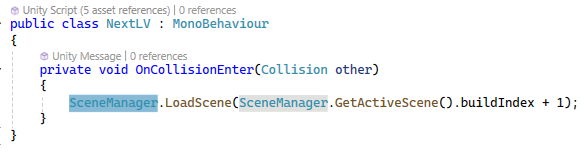
The scene transition system uses collision detection combined with scene management. When the player runs into a predefined object, it calls the Unity function "SceneManager.LoadScene()" to switch to another scene.
Main Menu
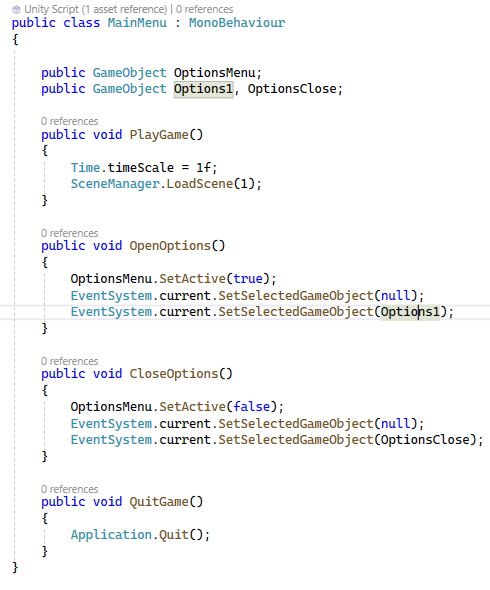
The Main Menu operation, when starting the game, is set to Time.timeScale = 1f; to reset the game time to normal in case it comes from the Pause screen, where the time was stopped, then Unity is instructed to load the scene with SceneManager.LoadScene(1); with Build Index number 1, and finally, the game is exited using the Application.Quit(); command.
Tools Used:
Unity 2020.3+
GitLab
SmartGit
GitLab Repository: Click Here
Download Now: Click Here

Comments